


Who can use this feature?
System administrators only
Adjust invitation settings and configure profile editing permissions for your users. You can specify conditions for staff and clients separately.
Here is what you can adjust:
Allow users to edit their name and job title
These details will display on their profile and on their contact page. If disabled, only an administrator will be able to edit a user's personal details.Allow users to edit public contact details
Enable users to edit their public phone number and email. These details will display on their profile and on their contact page. If disabled, only an administrator will be able to edit contact details.Enforce 2-step verification for invitations
If this option is set to enforce 2-step verification, an admin will also need to provide a phone number to invite users. If set to optional 1 or 2-step verification admins will have the option to invite with mobile number or not. If this is disabled or a mobile number optionally not input in the invite, users will need to enter their number for 2-step verification when they accept their invitation.
To adjust user permissions:
From your desktop, click on the admin menu
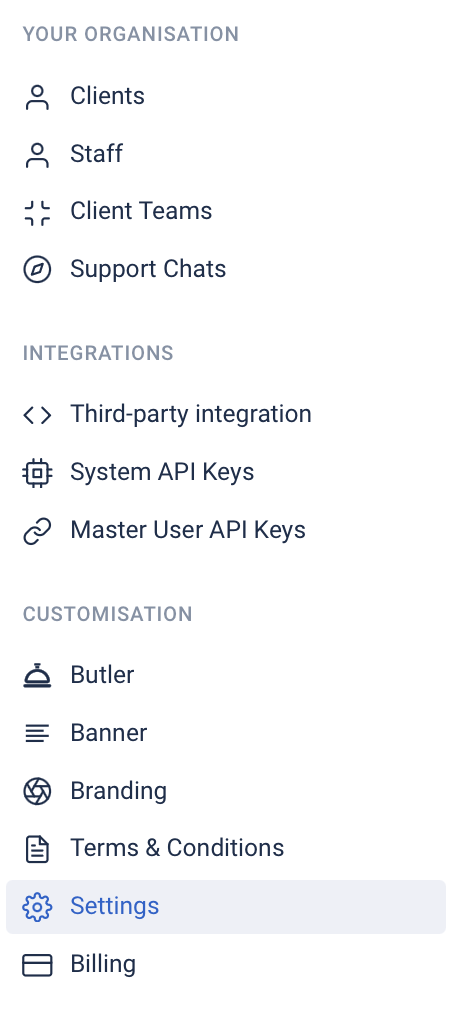
Click on Settings
Click on the Users & Invitations tab

Make any necessary changes and click Save.
Your changes will be applied.