Who can use this feature?
System administrators only
The option use of Tags to filter contacts within a CRM apply to Wealthcraft and Wealthbox CRM. Email remains the default for all other CRMs.
The use of tags provides further control as only those contacts will be checked daily to be synced.
The use of tags is recommended if you have a large number of contacts in a CRM (often a multiple of actual clients). You may have received an error message saying you have exceeded the maximum (5000 in Wealthbox and 15000 in Wealthcraft).
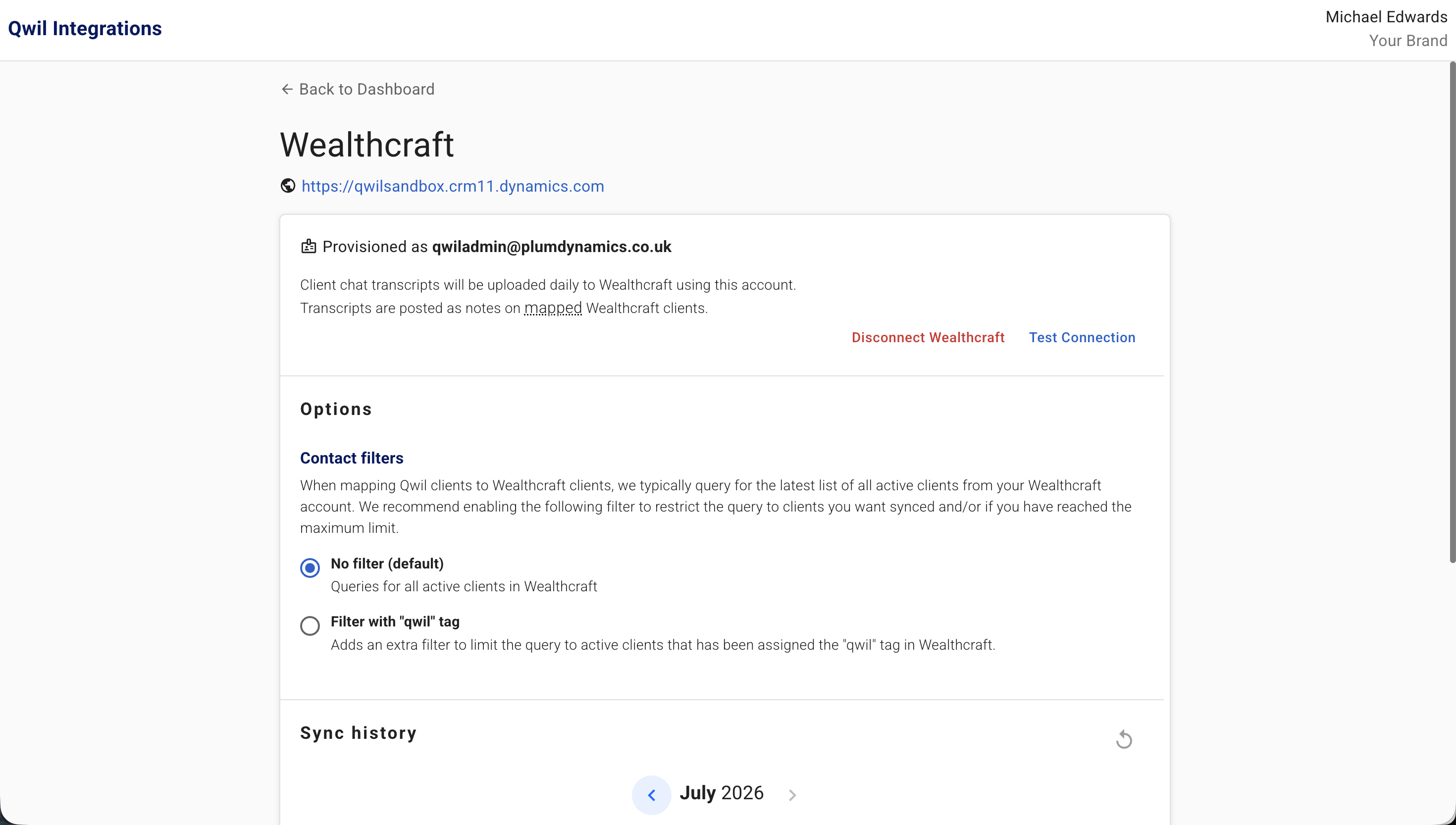
Enabling Contact Filters in Qwil
- Open the Third party Integrations page in Administration and connect your CRM if you havent already (note you can find set-up instructions here for Wealthcraft and Wealthbox)
- Click Configure integrations and then details next to your Connected App
- Under options, change the contact filter to Filter with "qwil" tag.
Adding Tags in Wealthcraft
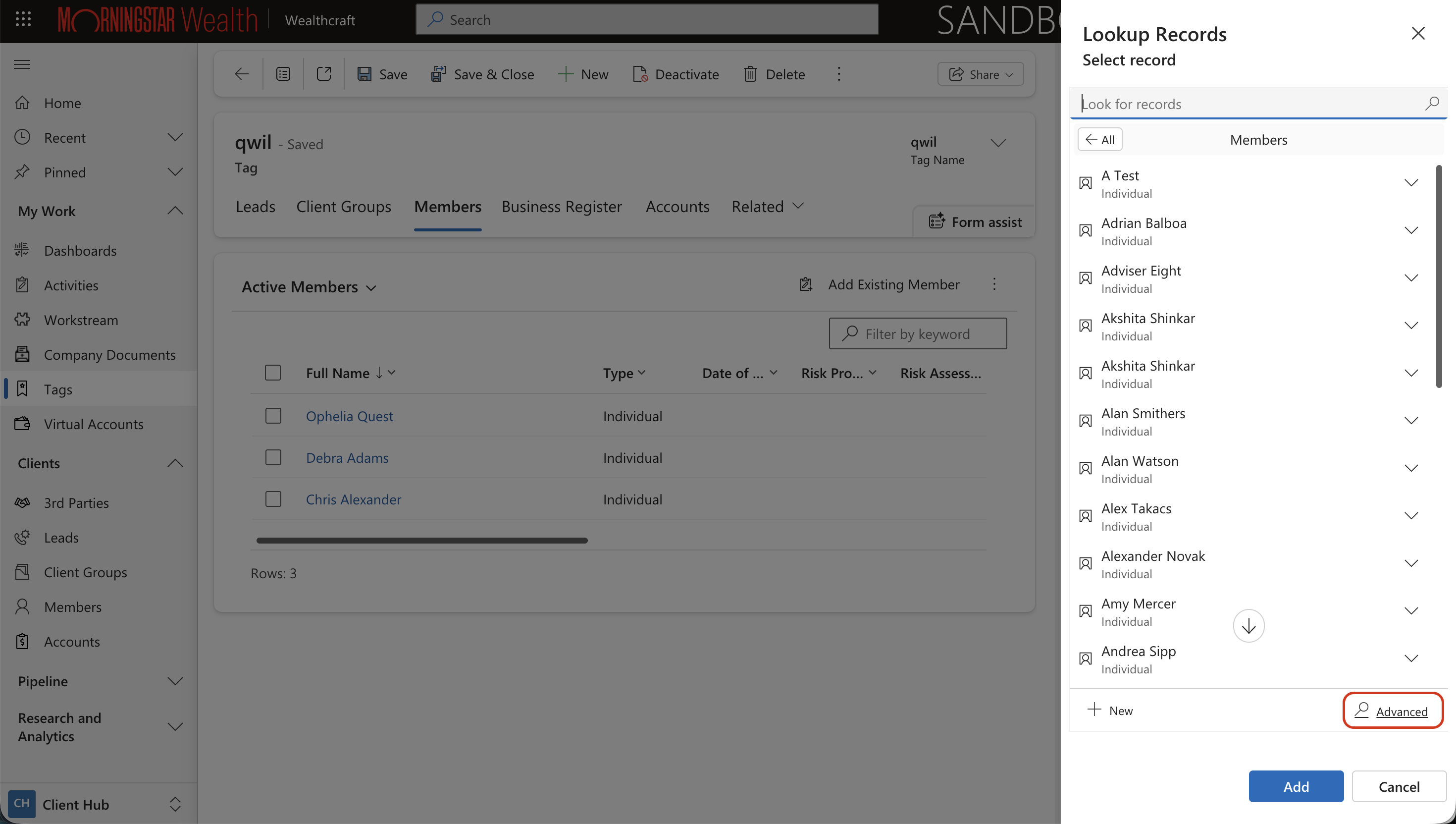
- Create a tag in Wealthcraft "qwil" all in lower case by clicking Tags on the sidebar and then click New
- Manually apply to the active contacts (to the member, not to the Client Group) you would like Qwil to sync too. Qwil will only search for those contacts on a daily basis to match the activity in Qwil
- You can bulk assign a tag by clicking on the qwil tag within Tags, then click onto the account type you use for your clients e.g. Members.
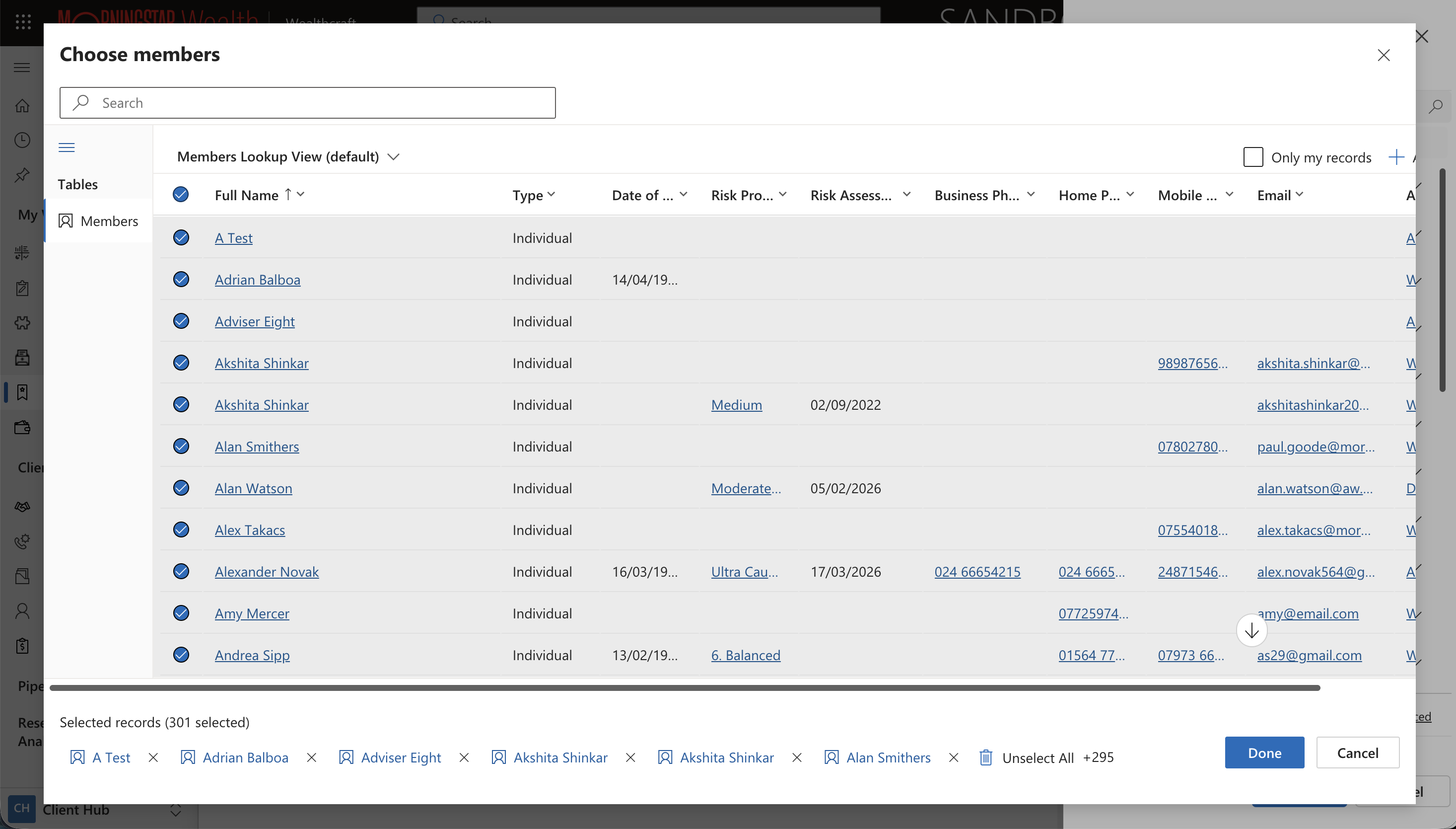
- Click "Add Existing Member" and add one by one or click on Advanced
- in advanced you can select all or select multiple records to add the tag to, then click done.
Bulk Adding Tags in Wealthbox
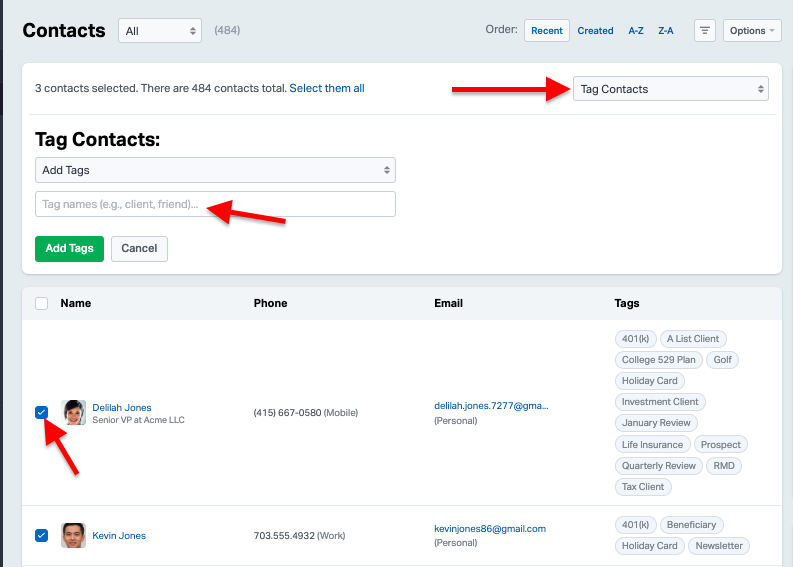
You can also mass add and remove tags to multiple contacts using "Bulk Actions".
- Go to the Contact Page: Navigate to the Contacts section in Wealthbox.
- Select Contacts: Check the boxes to the left of the contacts you want to tag. You can select multiple contacts at once.
- Click Bulk Actions: Once you’ve selected the contacts, click the "Bulk Actions" dropdown.
- Choose "Tag Contacts": From the dropdown menu, select "Tag Contacts."
- Add or Select a Tag: From there, you can select "Add Tags" and enter the name of the tag you would like to create or select an existing tag from the dropdown selection.
- Apply the Tag: Once you’ve selected or created the tag, click "Add Tags" to add it to the selected contacts.